



Launch arguments
General information
Warning!
Use this functionality only if you really understand why you need it!
Using launch arguments changes the browser's behavior, which may affect your work results in different ways!
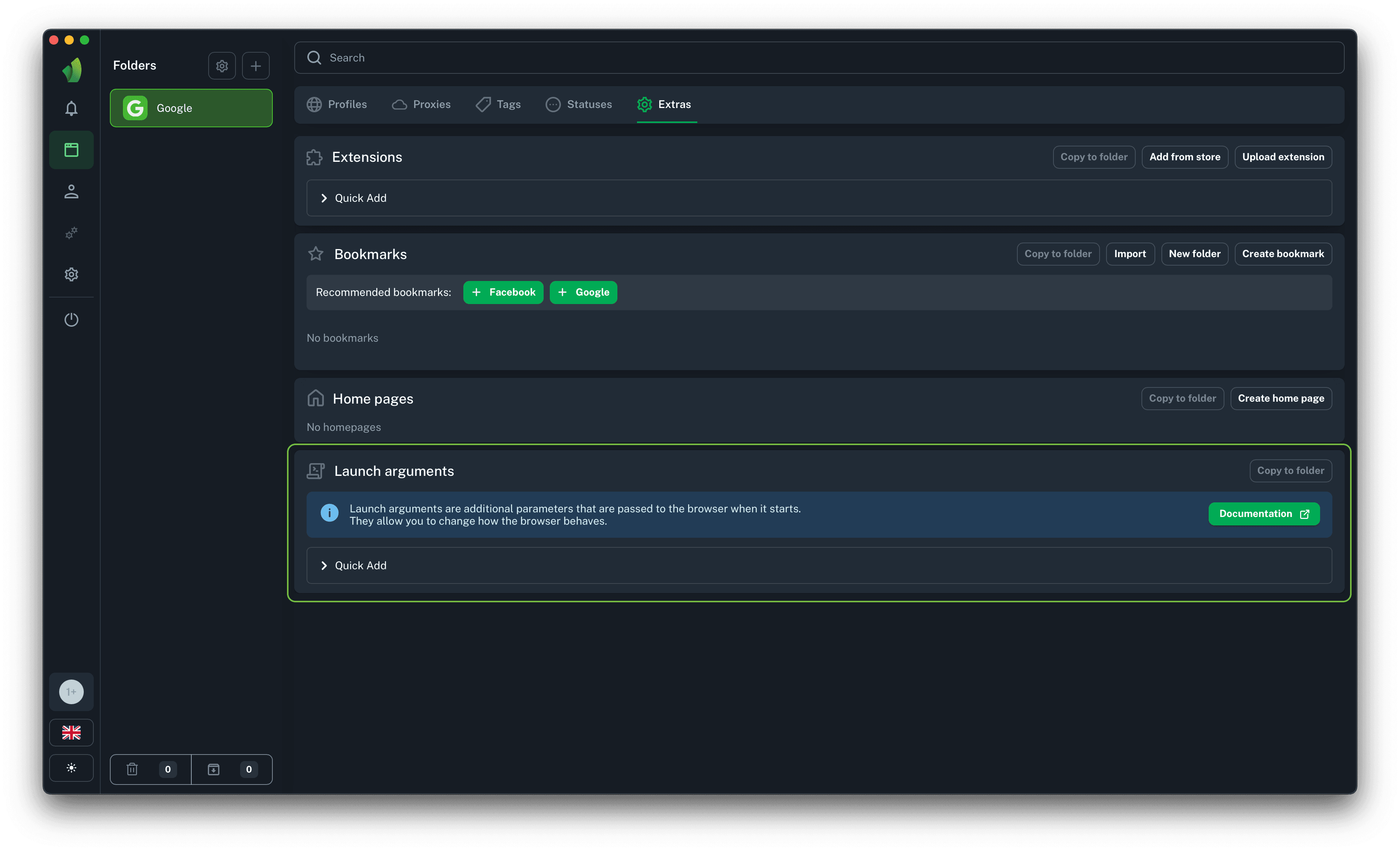
In Vision, it is possible to apply custom arguments (flags) to profiles within a folder. This functionality is located in the Extras section, which can be found in every folder.
Why launch arguments are needed
Custom flags allow you to fine-tune the behavior of the Chromium core for specific tasks: disable unnecessary features, change proxy behavior, or activate experimental capabilities. This is useful when working with anti-fraud systems, as well as for optimizing resource consumption during mass profile launches, for example using headless mode. Overall, flags provide access to low-level Chromium capabilities that are not exposed in the UI but are needed for specific multi-accounting and automation scenarios.
Using launch arguments
In Vision there are two ways to set launch arguments from the interface: from the built-in library or by typing the name in the search bar of the Launch arguments block.
Arguments library
To apply an argument from the library, open the Quick Add drop-down menu and start typing its name, for example proxy, select the one you need, add it, and enter the required value.
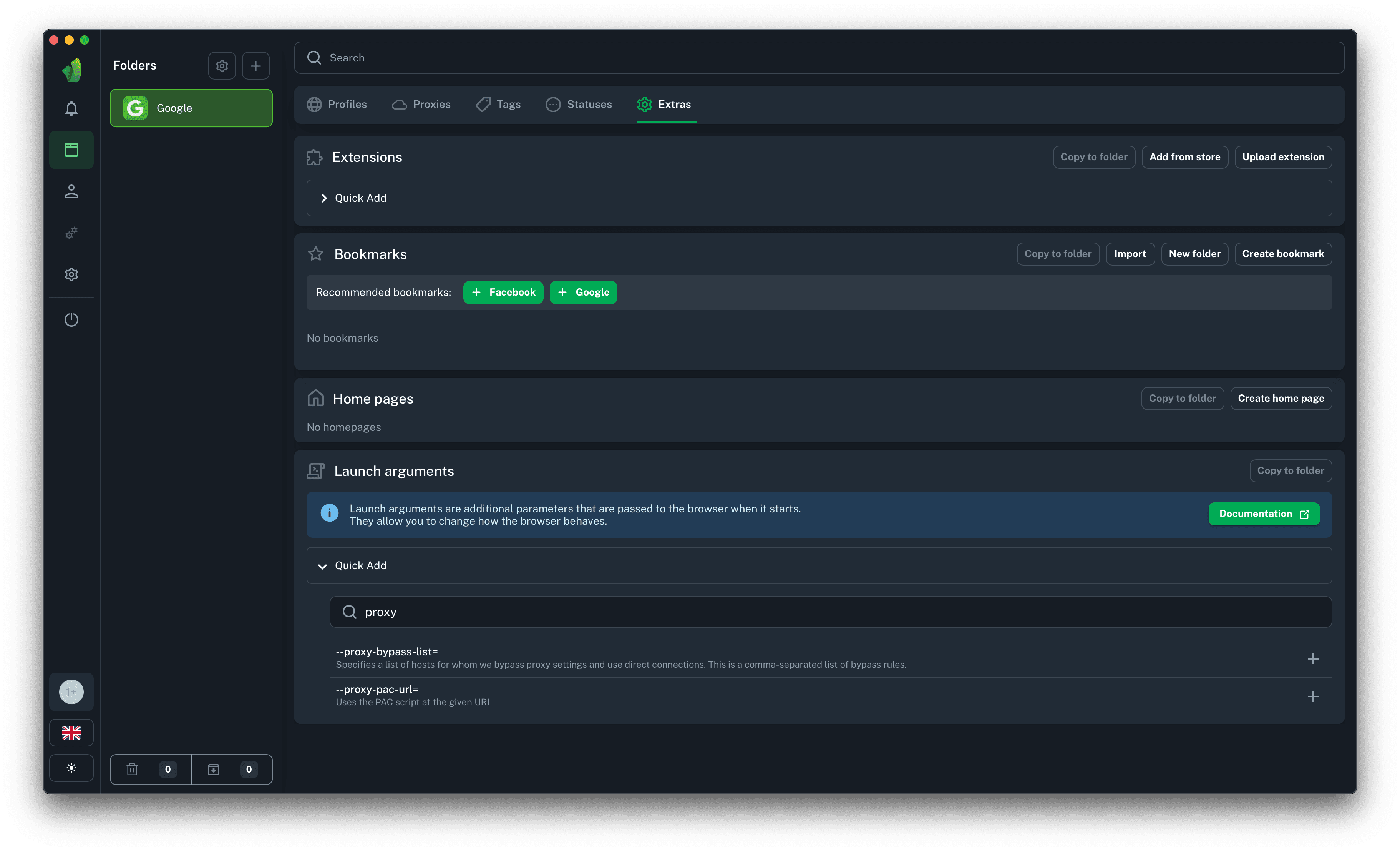 Start typing the argument name in the Quick Add field
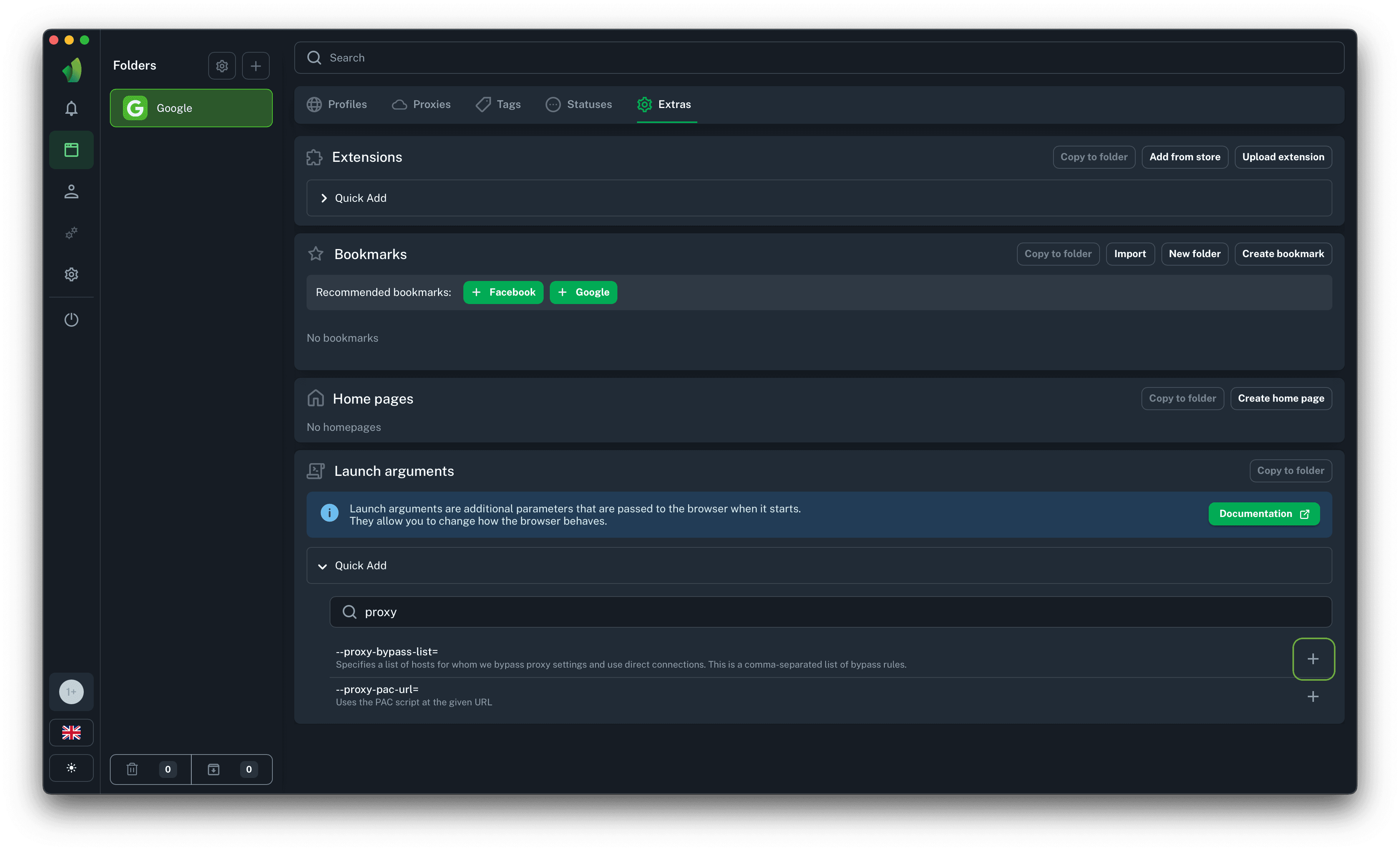 Click the + icon next to the argument you need
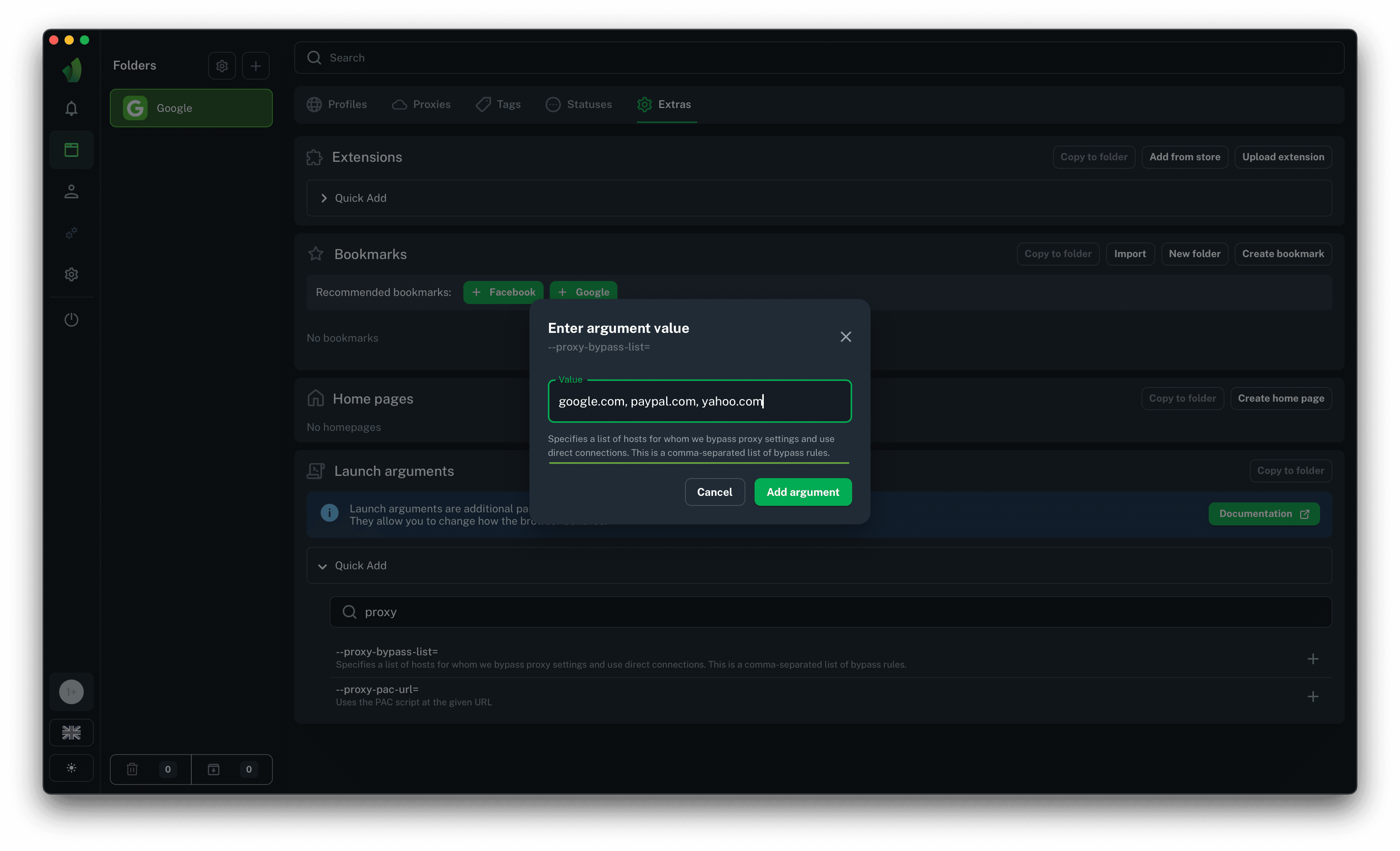 In the modal window that appears, enter the argument value
Pay attention to the note (underlined in green on the screenshot) shown below the Value field
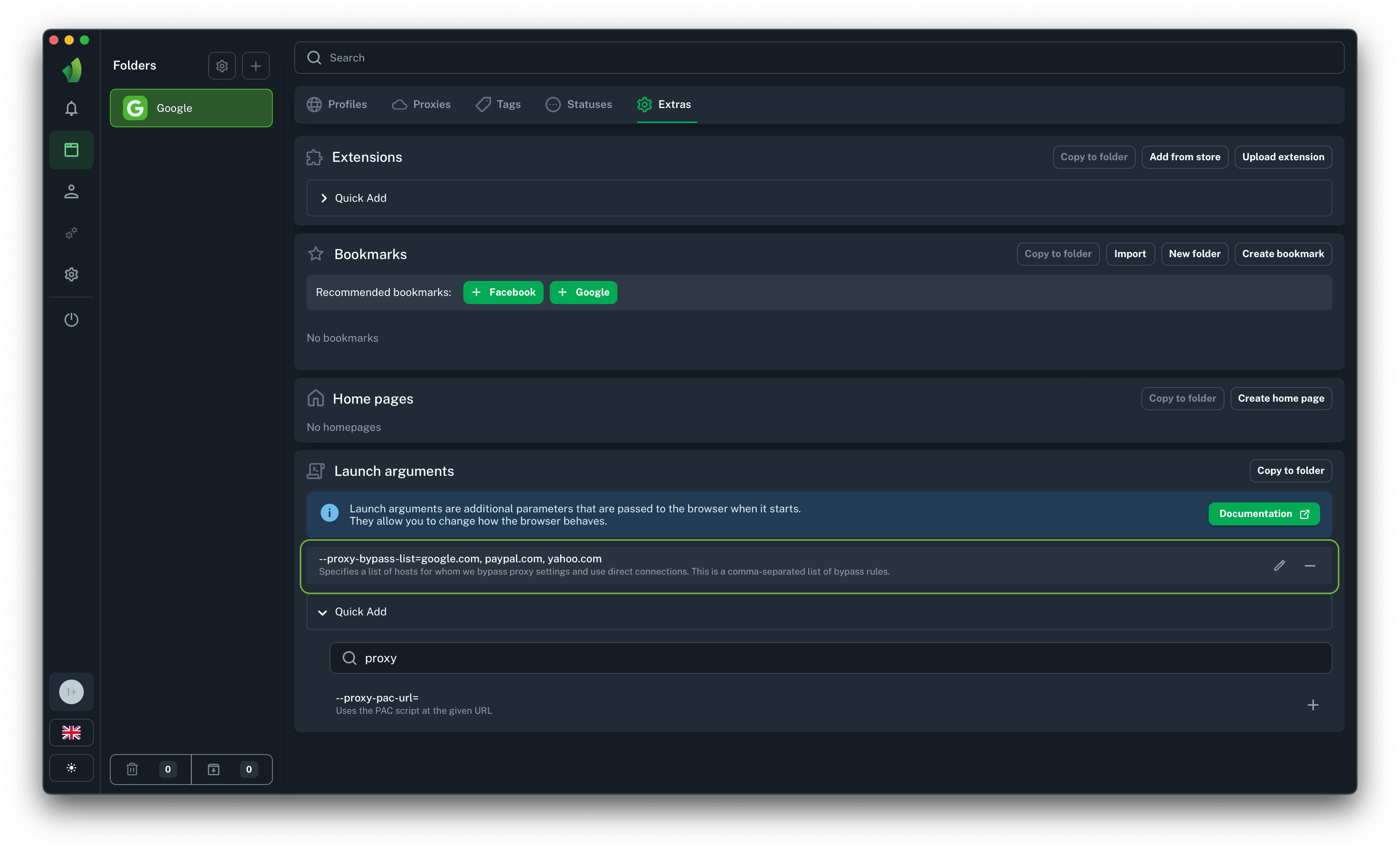 After clicking the Add button, the argument will disappear from the library but will appear in the list of added arguments with the specified values
Vision custom arguments
In addition to the standard Chromium flags, Vision adds arguments that are not present in the official Chrome:
| Argument | Description |
|---|---|
--skip-session-restore | Disables restoring tabs from the previous session (previous profile launch) |
--disable-password-save-bubble | Hides the pop-up prompt suggesting to save a password |
--stealth-automation | Blocks automation tools from injecting scripts or changing the observed page state |
--disable-hidden-events | Keeps the active tab visible and focused while the browser window is in the background, hidden, or occluded |
Adding arguments manually
If the argument you need is not in the library, you can add it manually: enter the name of your argument starting with a double dash in the Quick Add field, with or without a value, depending on the argument.
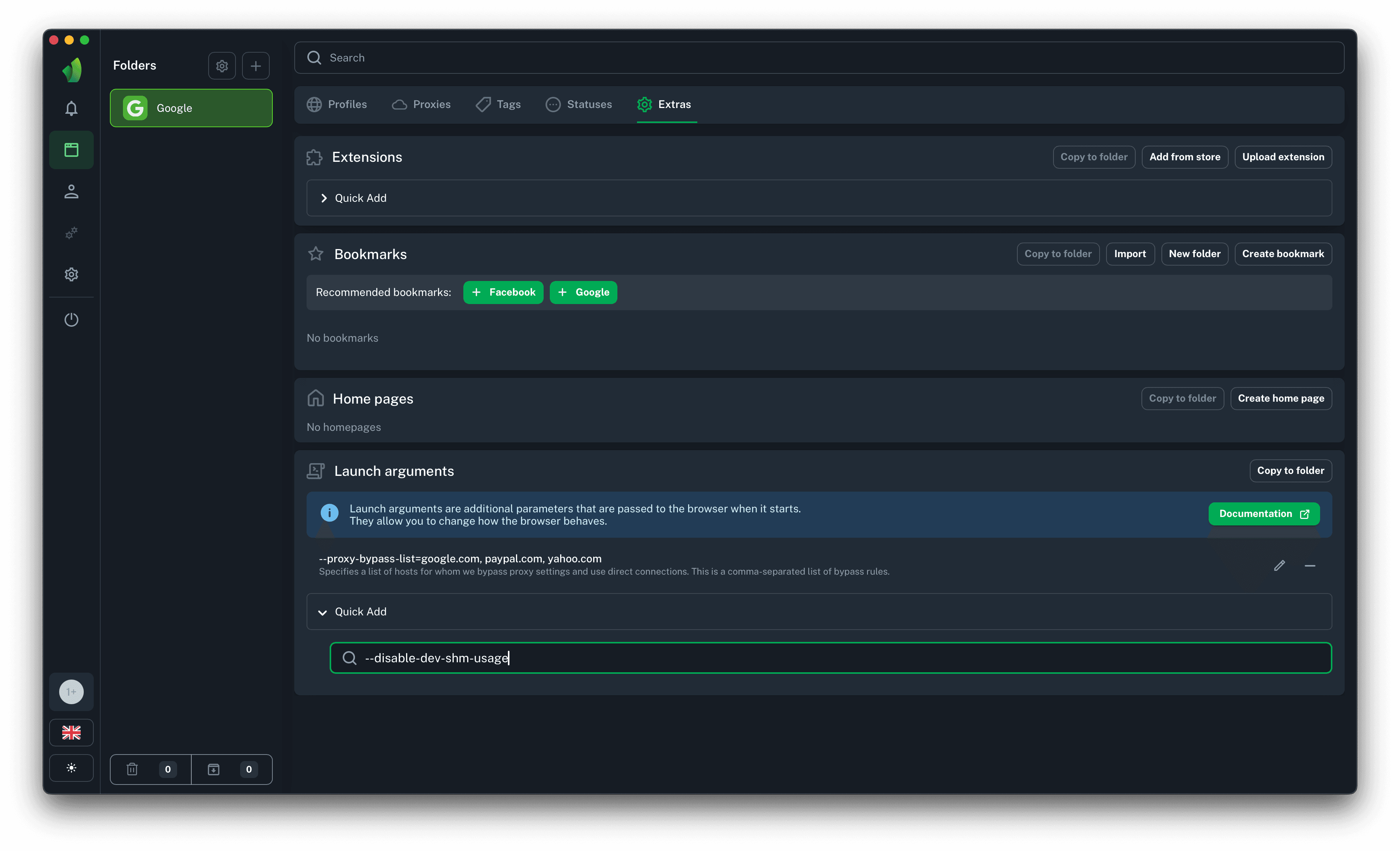 Enter the argument name and press Enter
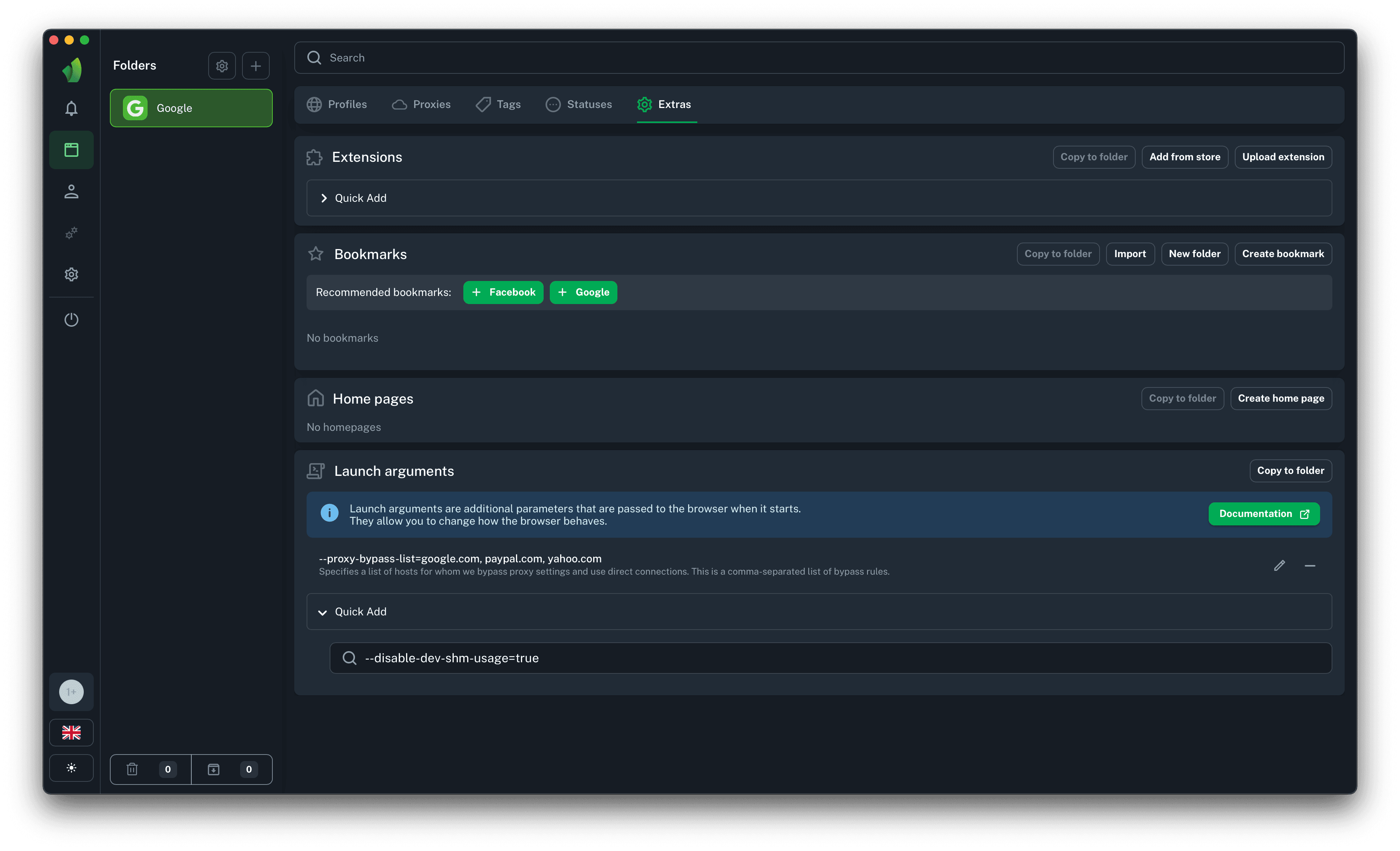 Enter the argument name and the value after the = sign, then press Enter
After performing these actions, the argument will appear in the list of added ones.
Examples of popular arguments
Below are several commonly used arguments with example values and a description of what they are for:
| Argument | Example value | Purpose |
|---|---|---|
--proxy-bypass-list | *.example.com;localhost;127.0.0.1 | A list of addresses for which the profile proxy is not applied — the connection goes directly. Handy for opening internal or local resources bypassing the proxy. Addresses are separated by the ; symbol. |
--window-size | 1280,720 | Sets the initial browser window size (width,height in pixels) when the profile launches. Useful for consistent window resolution, as well as for automation and screenshot scenarios. |
--start-maximized | no value | Launches the profile in a maximized window. Convenient so that each profile opens in a full-size window without manual resizing. |
--disable-notifications | no value | Disables web notification requests and display from websites. Removes the "Allow notifications" pop-ups that interfere with work and automation. |
Working with arguments
Editing argument values
If necessary, argument values can be edited:
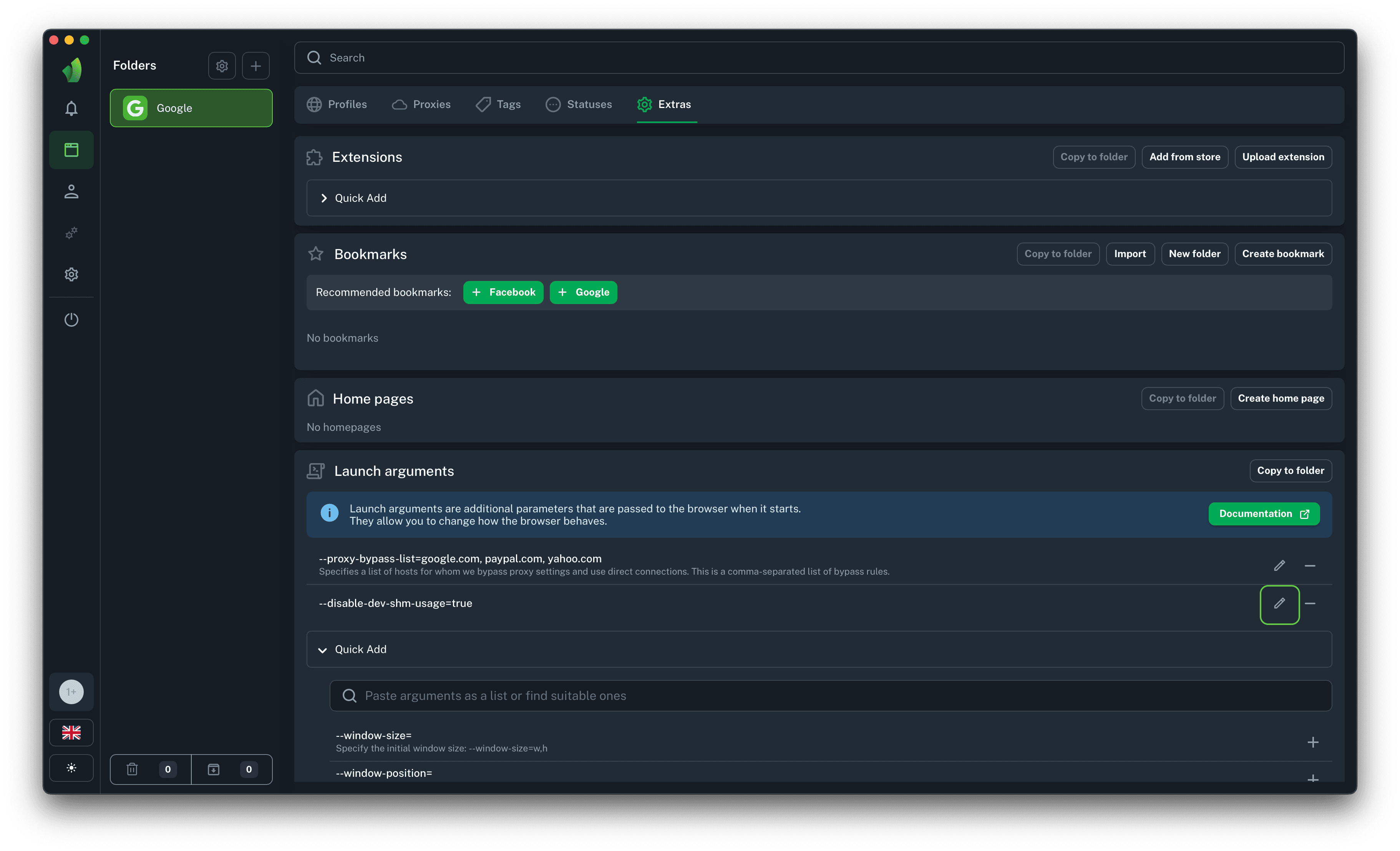 Click the pencil icon next to the argument whose value you want to edit
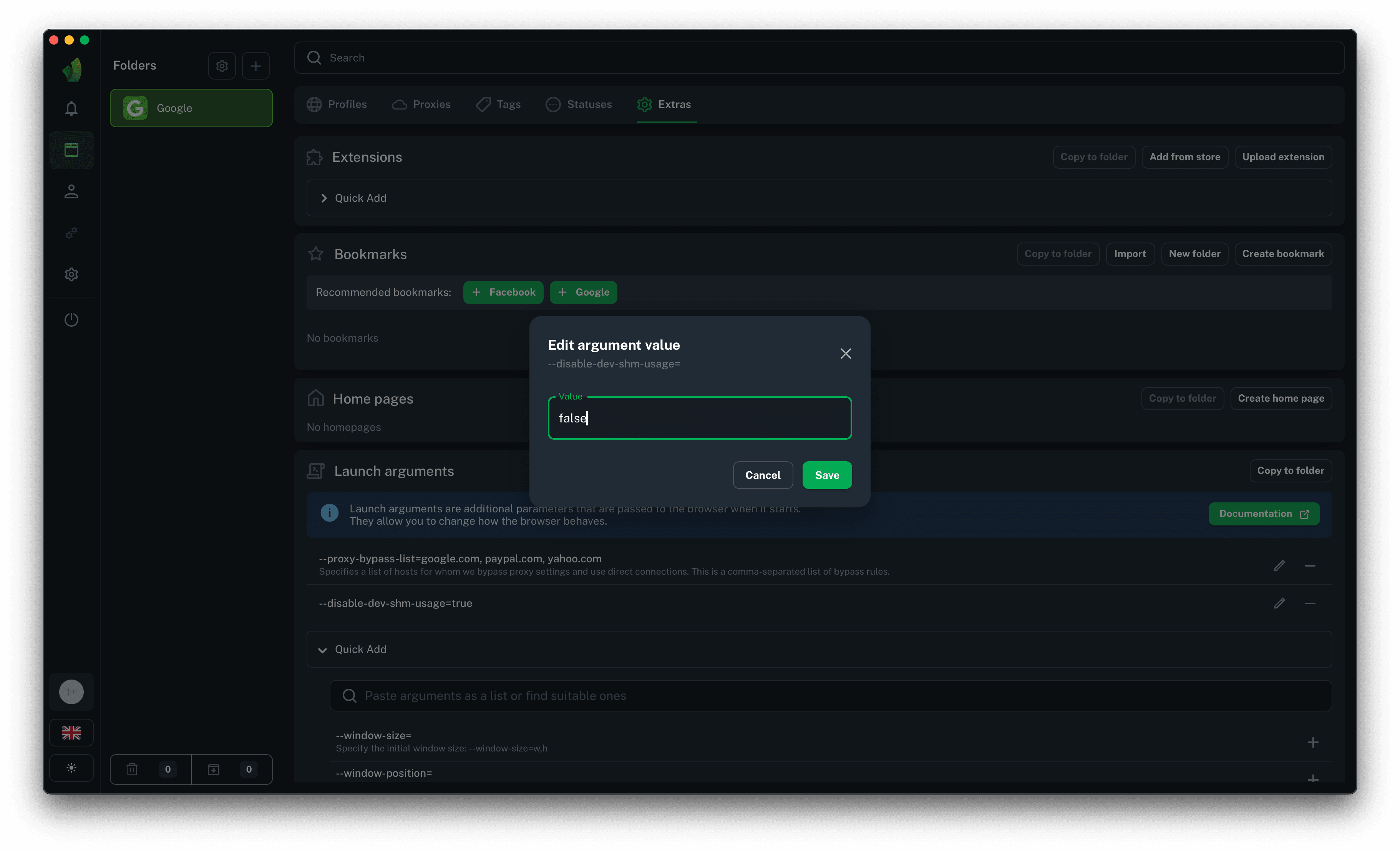 In the modal window that appears, enter a new value or change the current one, then click Save to apply the changes or Cancel to close the modal window without saving
As a result of these actions, the argument values will be changed.
Removing arguments
If there is no need to use a particular argument for the current folder, the arguments can be removed as follows:
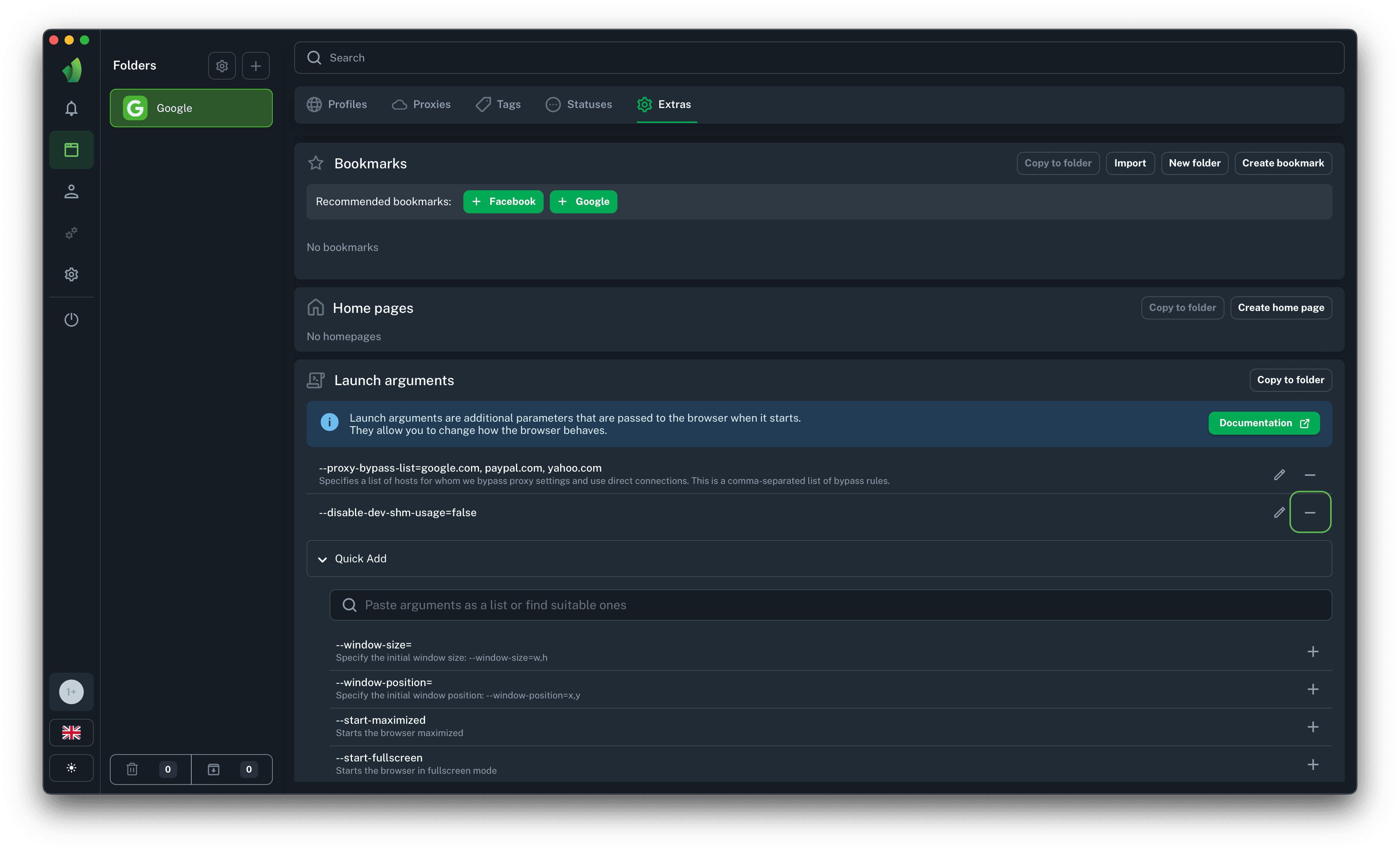 Click the minus icon next to the argument you want to remove
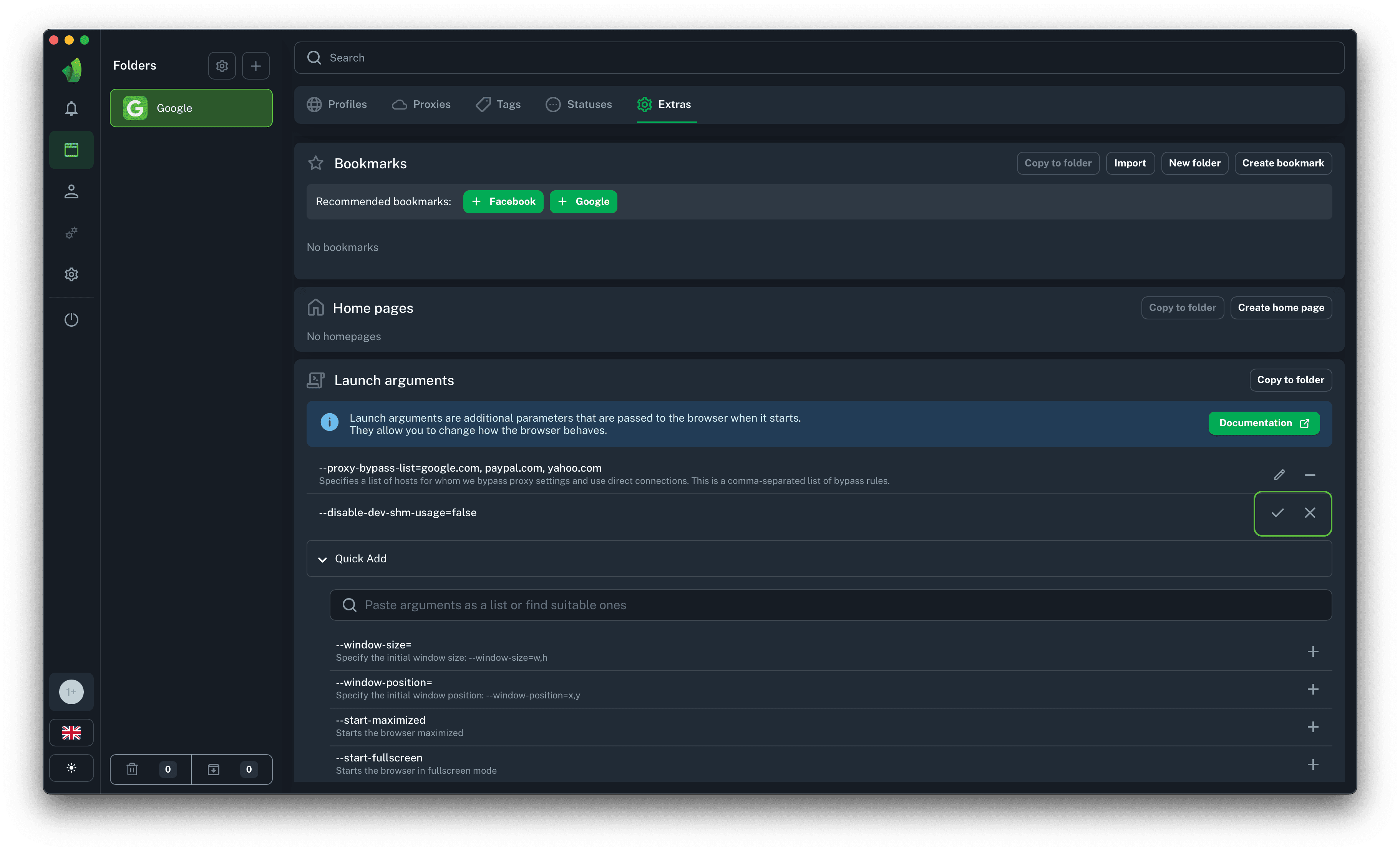 Then click the checkmark icon to apply the changes (remove the argument) or the cross icon to cancel the removal
As a result of these actions, the argument will be removed from the current folder.
Copying a set of arguments to another folder
If necessary, the set of added arguments can be copied to any other folder as follows:
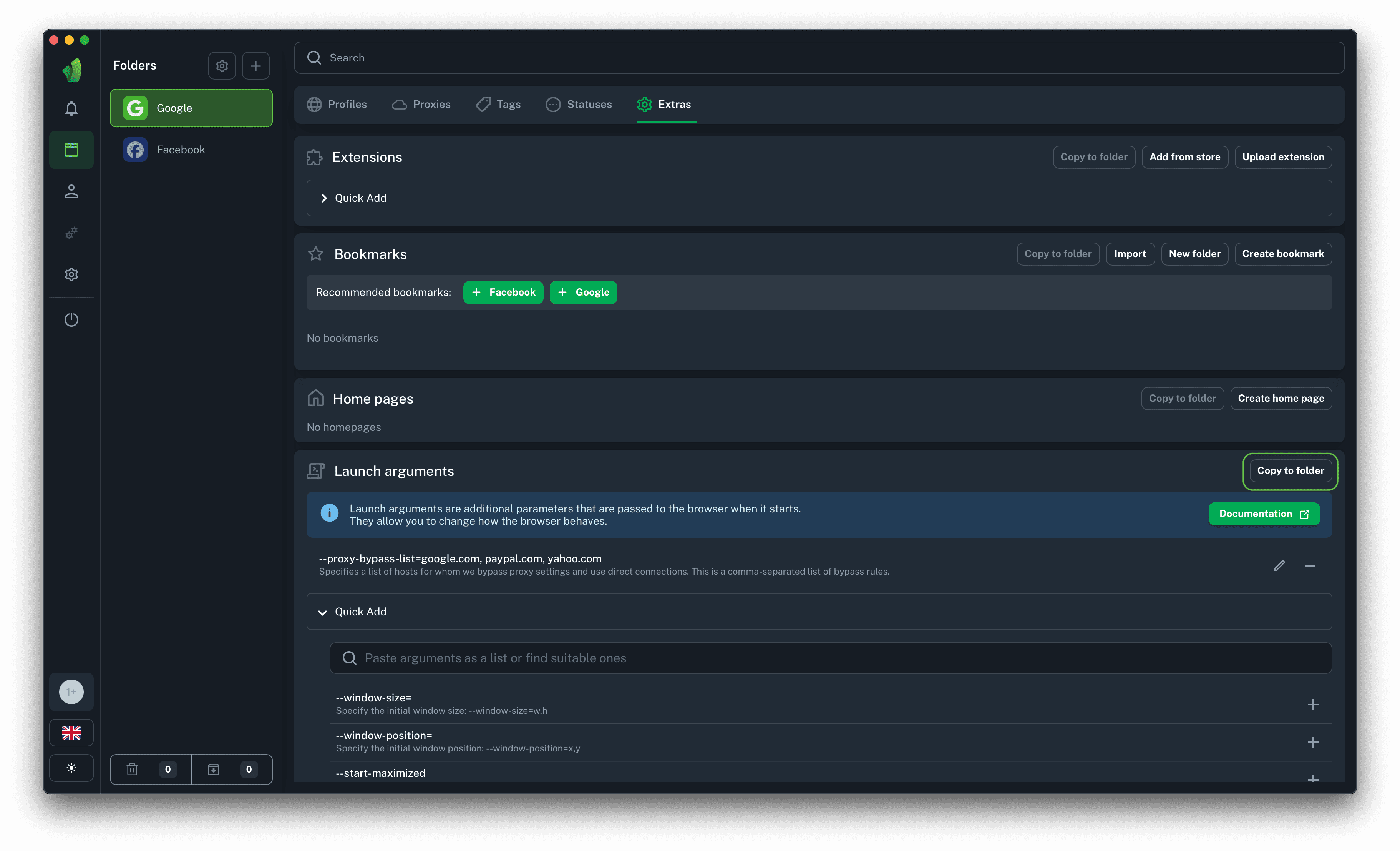 Click the Copy to folder button (circled in green on the screenshot)
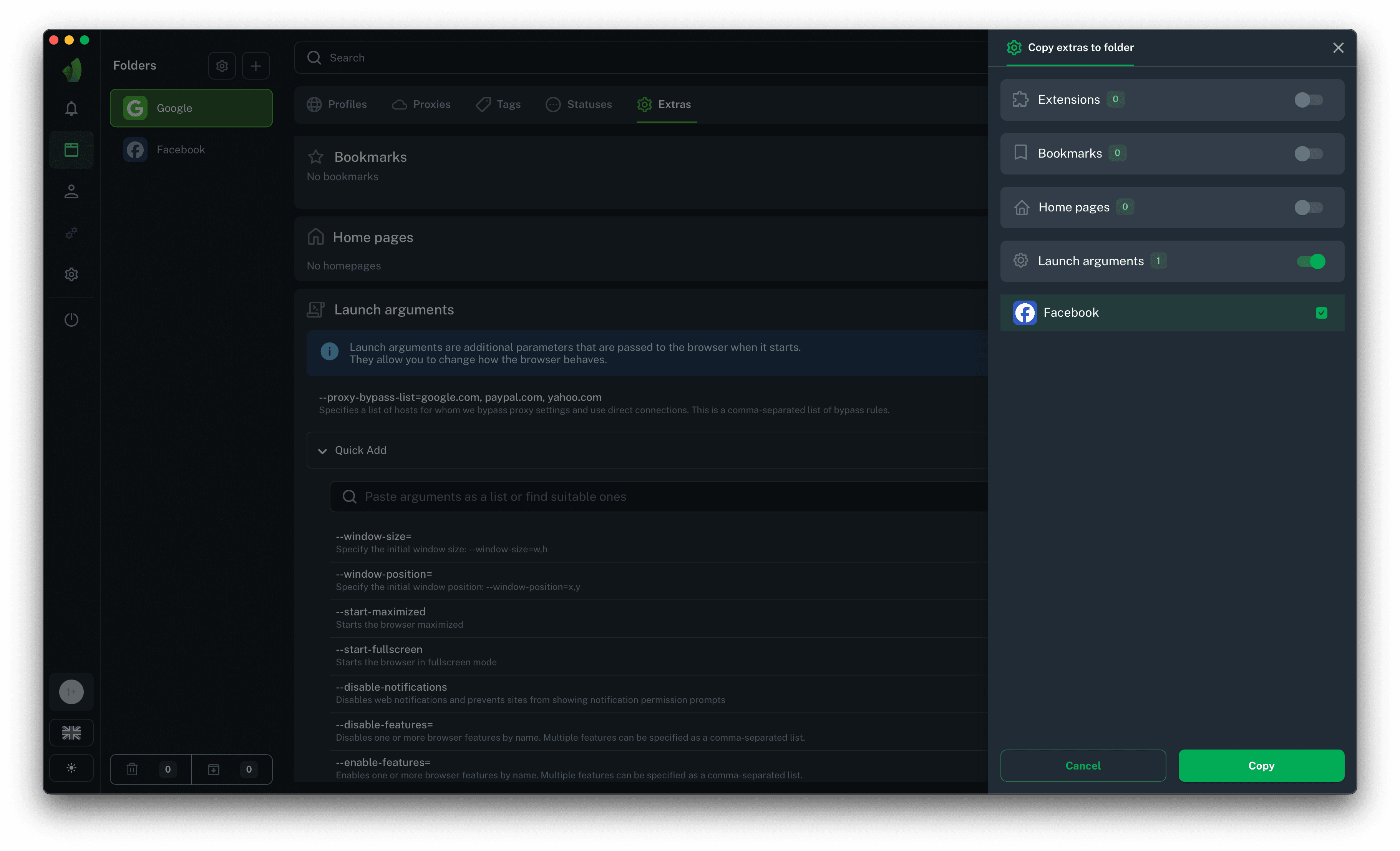 Then check the box for the folder or several folders to which you want to copy the set of launch arguments, and click the Copy button
As a result of copying, the arguments will be duplicated to the selected folders.