Introduction
Please note that this functionality is available only for users with the Windows operating system. The Synchronizer feature is currently not available on macOS and will be added later.
The Vision includes the Synchronizer feature, which allows you to perform actions simultaneously across multiple profiles. This tool significantly speeds up work and makes it possible to completely eliminate routine tasks from the workflow by performing actions only in the master profile.
Master profile — the profile launched first in the Synchronizer profile chain. All actions performed in it will be automatically duplicated in the other profiles that are running in Synchronizer mode.
Launch Synchronizer
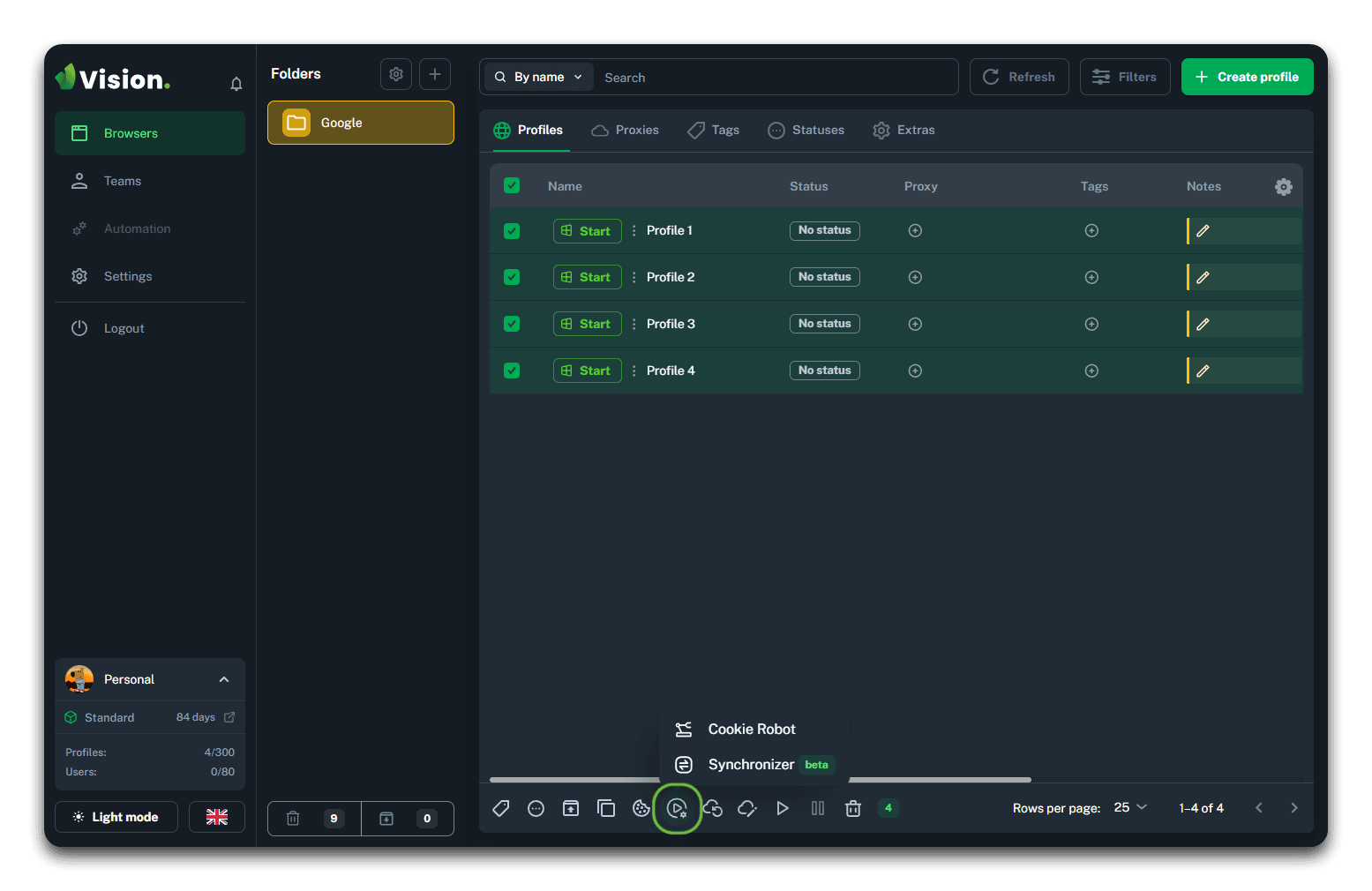
To start the Synchronizer, you need to select the required profiles and, in the bulk actions menu, hover over the automation tools icon (highlighted in green in the screenshot), then select Synchronizer from the menu.
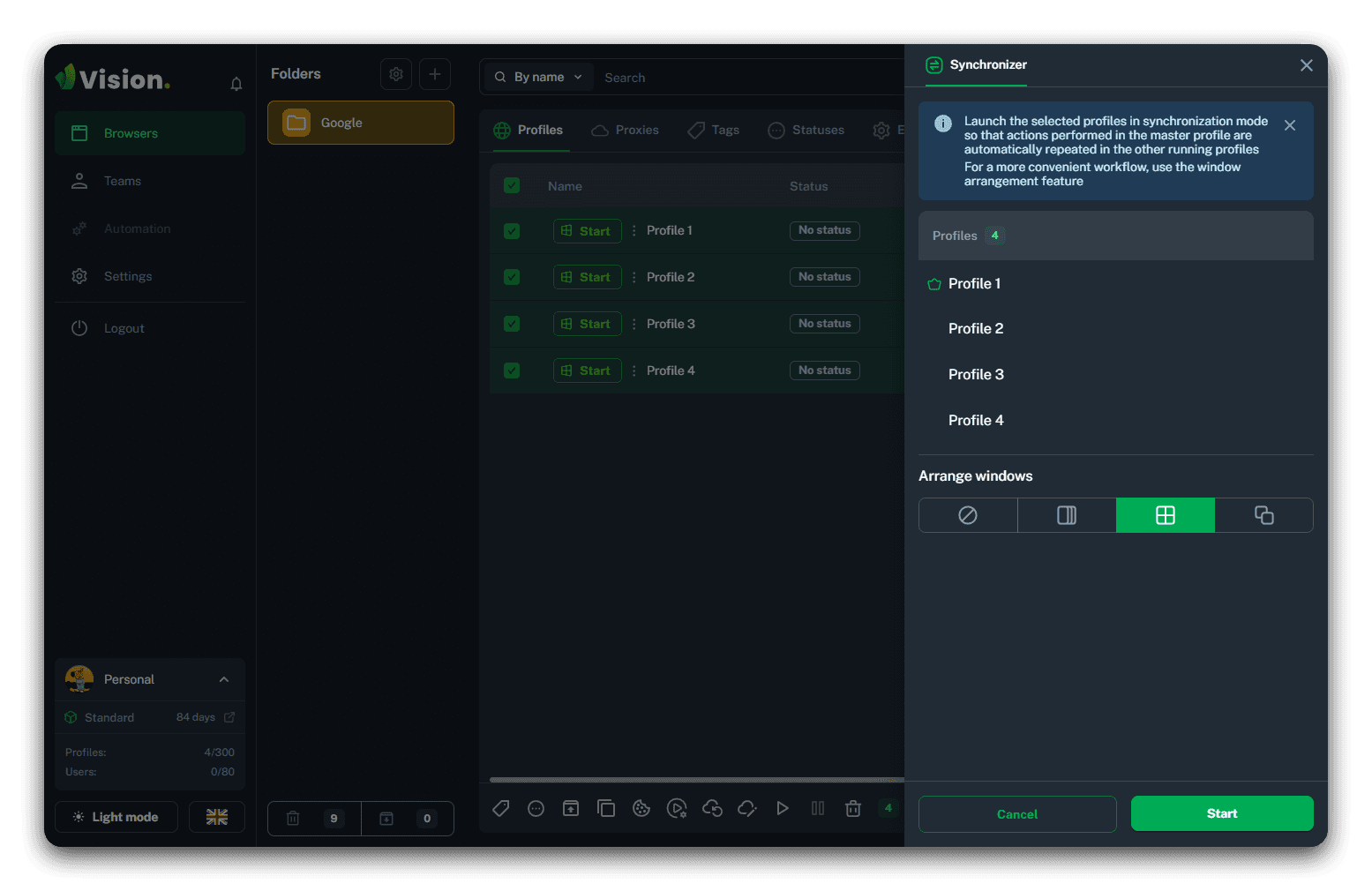
Please note that the master profile in the list of profiles launched in Synchronizer mode is marked with a corresponding icon.
After opening the Synchronizer sidebar, you need to choose one of the four options (No arrangement, Stacked, Fixed grid, Cascade) for placing the windows of the launched profiles on the screen and click the Start button.
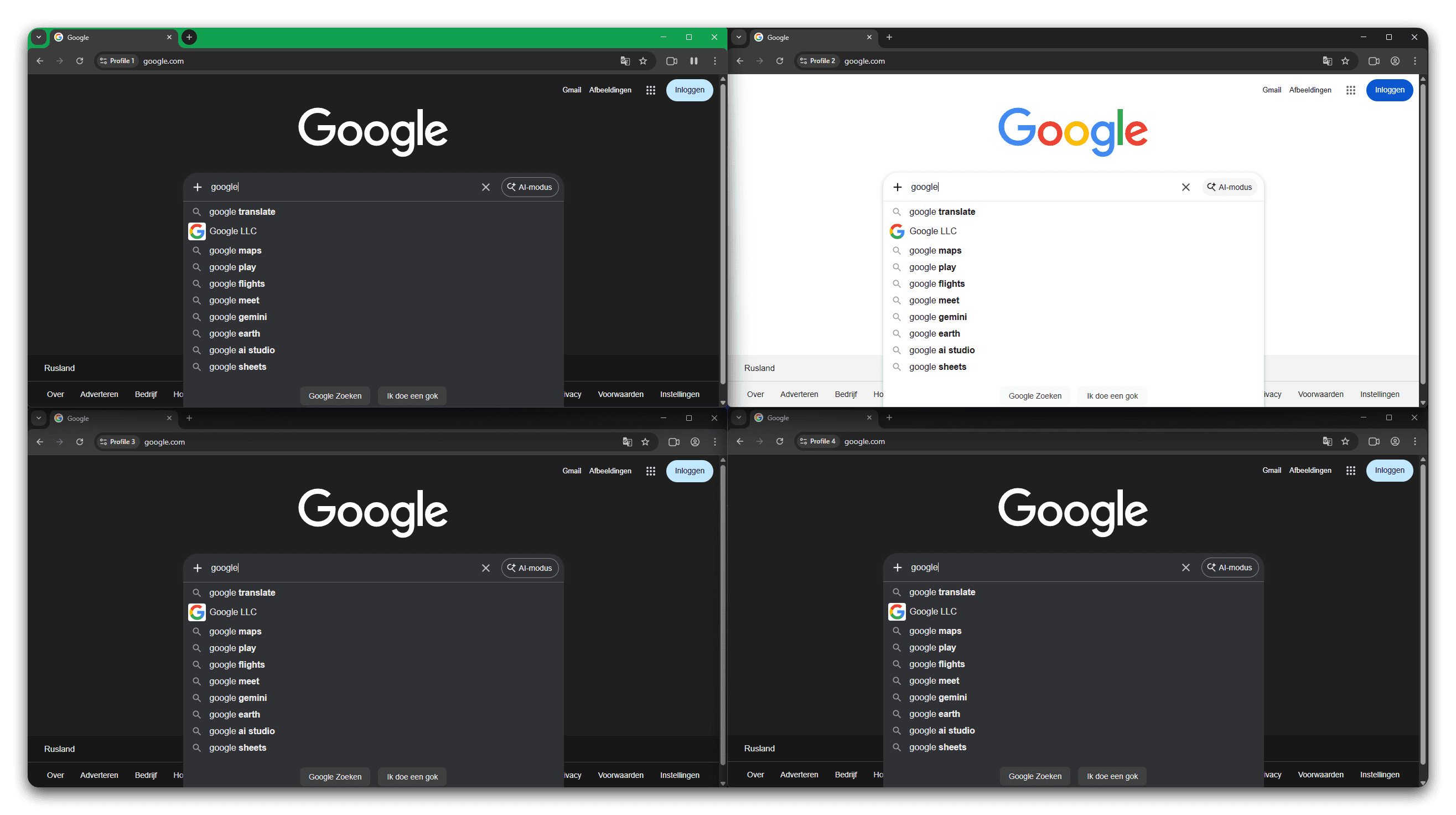
As a result, the selected profiles will be launched in Synchronizer mode, and actions performed in the master profile (which differs from the other profiles by its green title bar) will also be executed in the other profiles.
Adding profiles to the Synchronizer
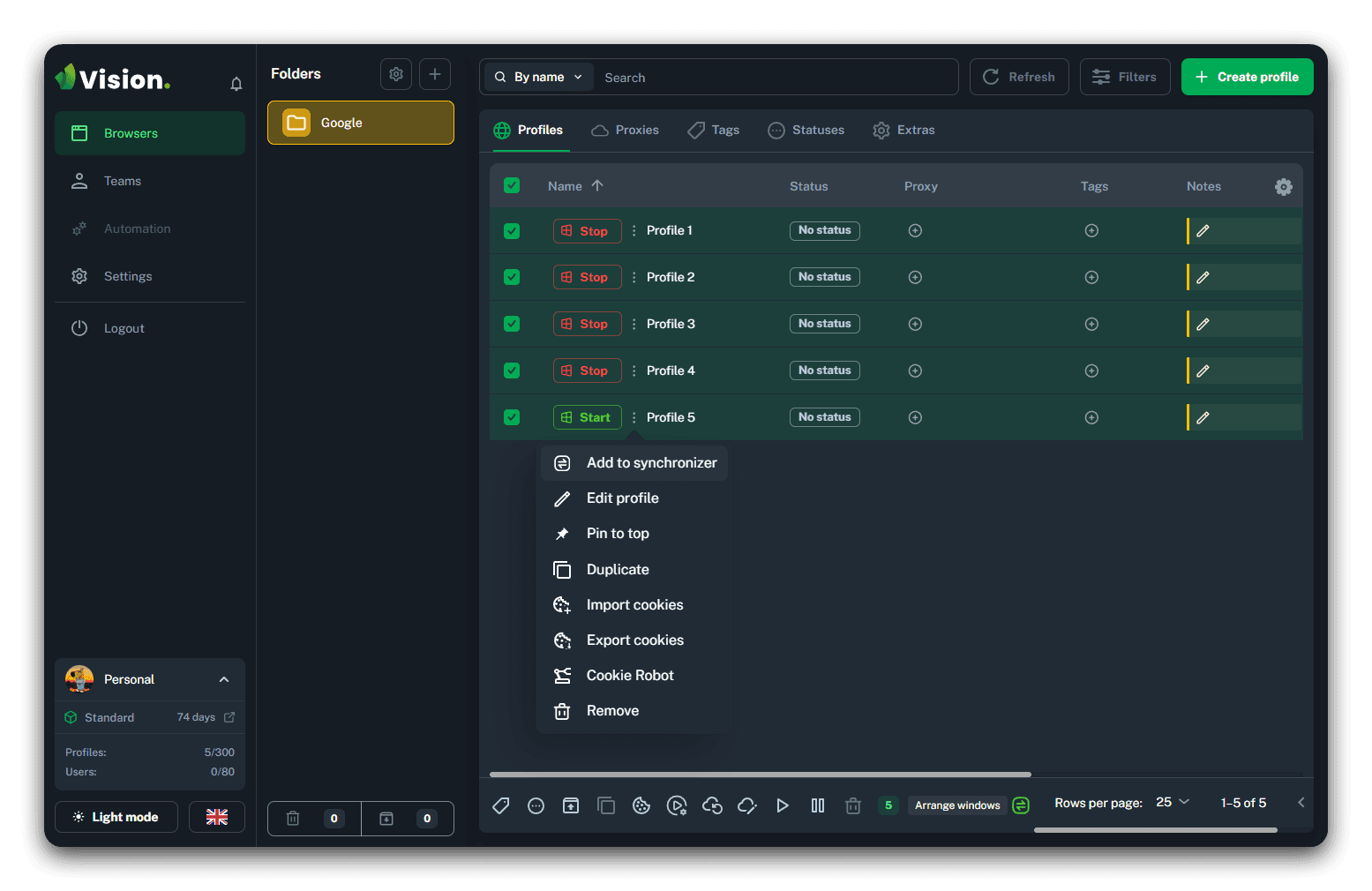
In Vision, there is also an option to add profiles to an already running synchronizer. To do this, open the profile’s context menu (the three-dot icon next to its name) and click Add to Synchronizer.
Pause and Stopping the Synchronizer
Pause Functionality
During operation, it may become necessary to stop the simultaneous execution of actions across multiple profiles. For this purpose, the Pause function is available in the master profile.
By clicking the pause icon next to the address bar in the master profile (highlighted in red in the screenshot), you can pause the duplication of user actions across all profiles running in Synchronizer mode. The pause icon will change to a play icon.
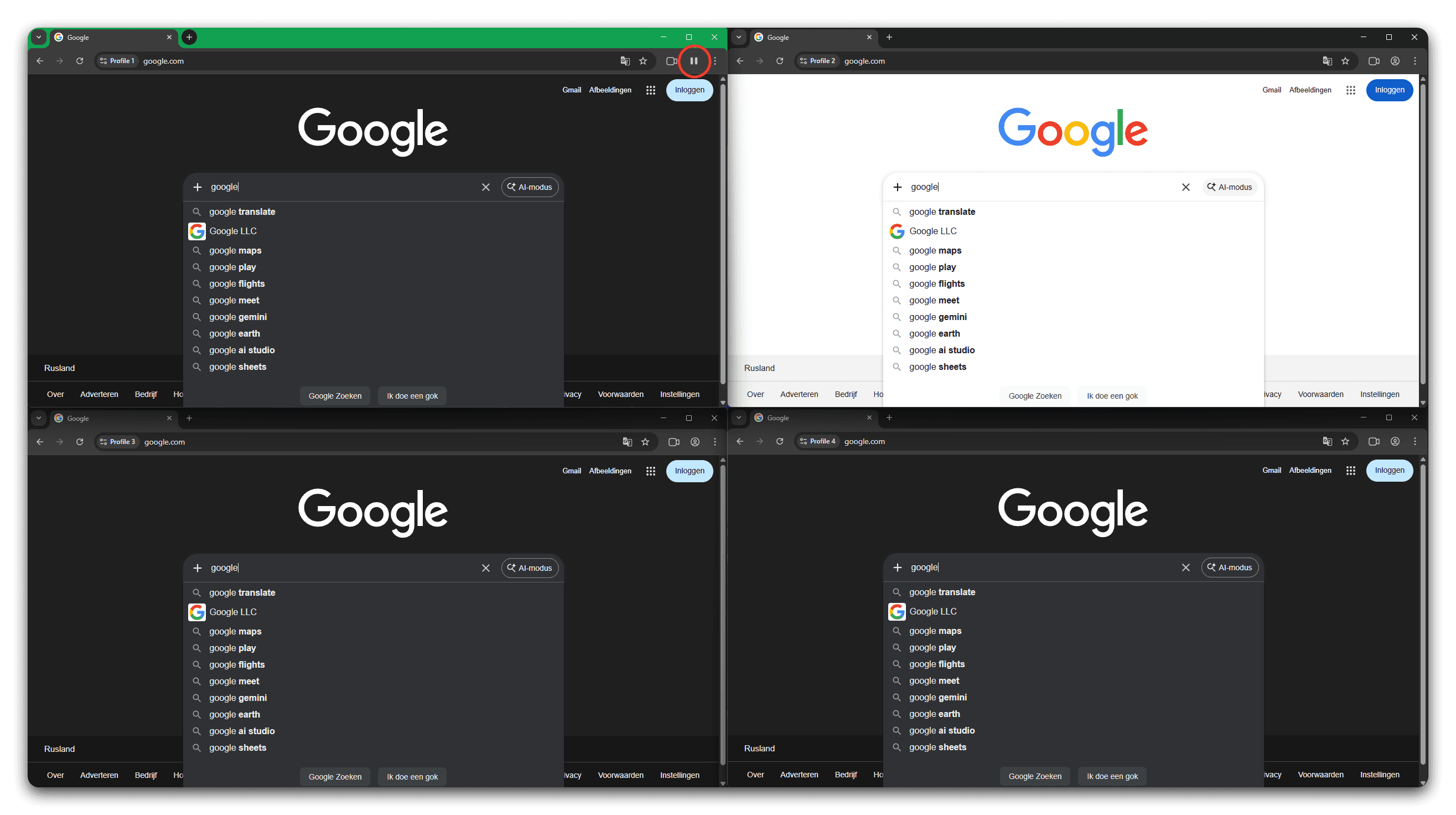
To resume the Synchronizer with all launched profiles, click the play icon located in the same place next to the address bar in the master profile.
Stopping the Synchronizer
To completely stop the profiles and exit Synchronizer mode, you need to close the master profile in any convenient way (the Stop button, the close (X) icon in the title bar) or click the Stop button in the Vision application window in the opened Synchronizer sidebar.